Browse documentation
Defining Your Target Schema & AI Planning
Define your data migration's source of truth, then let Elvity's AI generate an automated, human-verified mapping plan.
This section guides you through defining a Target Schema — your data migration’s “Source of Truth” — and outlines how Elvity’s AI processes your schema to generate an automated, human-verified data mapping plan.
The Target Schema Wizard (User Interface)
You can build, configure, and enforce validation rules on a target schema entirely in the browser using the step-by-step Target Schema Wizard.
Step 1 — Create a New Schema
- 1Navigate to Target Schemas in the left sidebar (
/schemas). - 2Click the Create New Schema button in the top-right corner of the page.
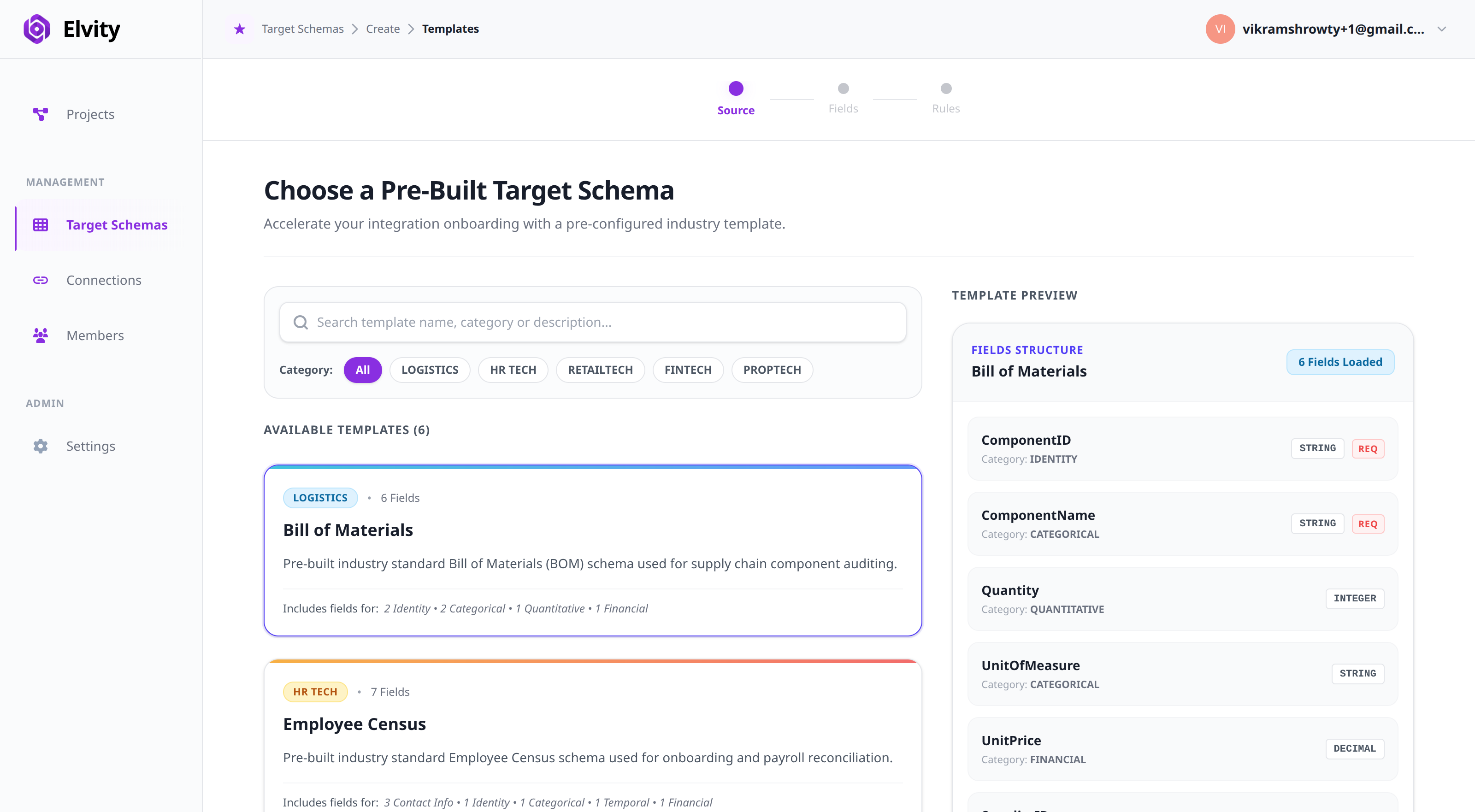
- 3On the Target Schema Definition page, select how you want to build the schema:
- Upload Sample File (Recommended): Reverse-engineer fields instantly from an existing CSV or Excel template. Click Continue.
- Use Target Templates: Discover and instantiate pre-built industry templates (such as Census, Bill of Materials, Product Catalog, or Member Register) with pre-configured field types and validation rules. Filter by category (e.g., Logistics, HR Tech, RetailTech, FinTech) or search by keyword, then click Instantiate Template. When working with a template schema, you can also leverage built-in sample datasets pre-packaged directly into the product to quickly test mappings and validation rules without uploading external files.
- Define Manually: Start with an empty schema and add fields yourself. Click Create Blank Schema.
Step 2 — Upload Your Sample File
(If “Upload Sample File” was selected)
- 1Drag and drop your
.csvor.xlsxfile into the dashed dropzone, or click Choose file to select one locally. - 2Once the file is processed and the target blueprint is created, continue to the fields step.
(If “Define Manually” was selected, skip to Step 3 — the wizard creates a blank schema and opens the fields editor directly.)
Step 3 — Refine Target Fields
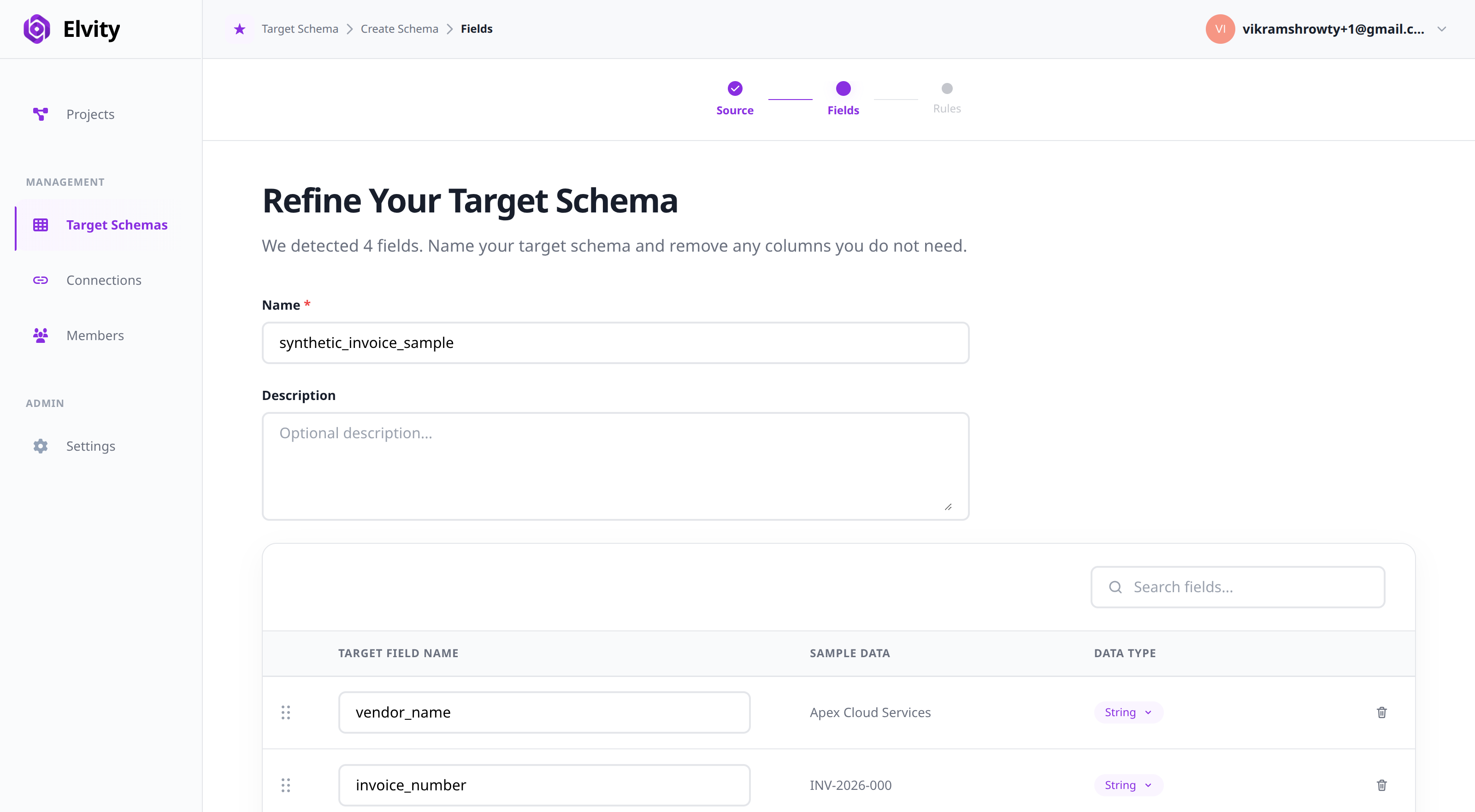
On the Refine Your Target Schema page, configure your columns:
- 1Schema Identity: Give your schema a recognizable Name (e.g.,
Partner Data Migration Schema) and an optional Description. - 2Review or Add Fields: Upload paths show inferred columns; manual paths start empty — use + Add Custom Field to create columns.
- 3Customize Field Names: Edit names inline in the Target Field Name column.
- 4Inspect Sample Data: On upload paths, review the Sample Data column for values parsed from your file.
- 5Adjust Data Types: Use the Data Type dropdown:
String,Integer,Decimal,Boolean,Date,Timestamp, orJSON. - 6Remove Columns: Use the row delete action to drop columns you do not need (there is no separate include toggle).
- 7Click Next: Set Validation Rules to continue.
Step 4 — Configure Validation Rules
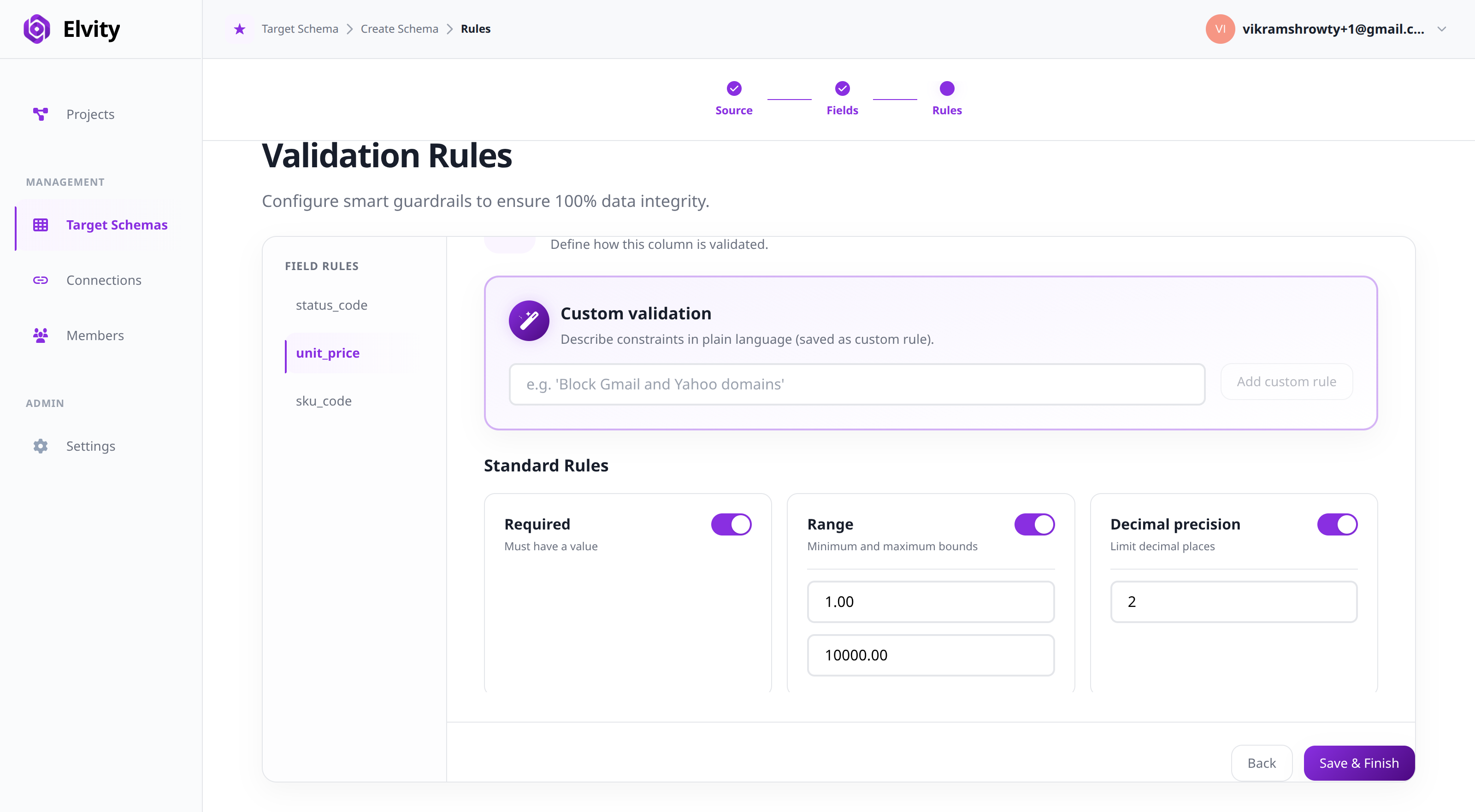
In the Validation Rules workspace, configure smart guardrails to protect your target systems from bad data:
- 1Select Column: Click on any column in the left Field Rules navigation sidebar.
- 2Apply Standard Rules: Toggle and configure constraints on the right side:
- Required: Enforces that a cell must never be empty.
- Case Match: Aligns text to
UPPER,LOWER,TITLE, orUNCHANGEDcasing. - Content Standardization: Automatically trims leading/trailing whitespace or strips special characters.
- Date/Time Format: Defines the target format (e.g.,
YYYY-MM-DD) and provides optional source hints. - Timezone: Standardizes timestamps to a specific zone (e.g.,
UTCorEST). - Range: Sets minimum and maximum numerical boundaries.
- Decimal Precision: Hard-stops float values to a specific number of decimal places.
- Allowed Values (Enum): Limits accepted values to a comma-separated list.
Once all column rules are configured, click Save & Finish to register your schema in the system.
The AI Discovery & Planning Phase (Data Migration)
When you associate a Target Schema with an active project workflow, Elvity does not immediately run the migration. Instead, the autonomous AI Data Migration Engine initiates a formal Discovery & Planning phase.
How AI Discovery Works
- Structured Feeds: If spreadsheets are provided, the AI identifies anchor columns and structures a mapping strategy. When multi-sheet Excel files are uploaded, the system automatically inspects each worksheet, identifies candidate sheets matching your schema, or prompts you to pick the exact sheet.
- Unstructured Feeds (PDFs/Images): If no spreadsheet is provided, the AI analyzes document metadata and automatically groups matching files (e.g., multi-page contracts, invoices) into logical rows.
- Enum & Constraint Enforcement: When your target schema specifies allowed values (Enum), the AI restricts document extraction to valid choices, preventing formatting deviations during data migration.
- Lineage Mandate: The AI maps extraction variables so that every value can be traced back to its precise source position via deep visual OCR extraction and structure-flattening tools.
Reviewing the On-Screen Data Plan
The AI writes its proposed mapping strategy directly to the workspace, which renders automatically inside your active workflow screen. Always review this plan thoroughly before running your data.
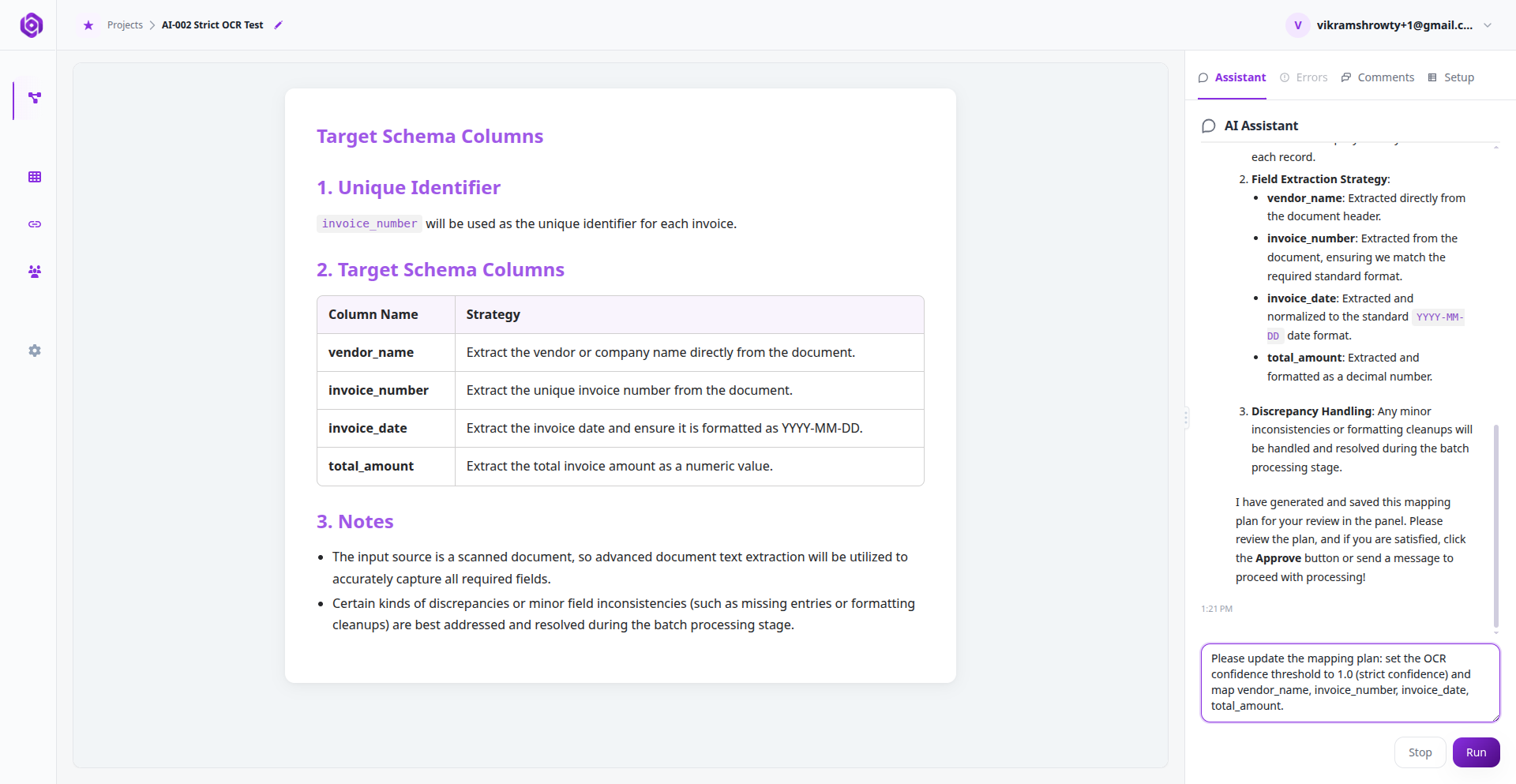
1. Unique Identifier — lists the primary key columns (e.g., customer_id, product_id) the AI will use to track and validate rows.
## 1. Unique Identifier
[
  "customer_id",
  "product_id"
]
2. Target Schema Columns Strategy Table — a comprehensive table detailing exactly where your target columns are coming from and how they will be transformed.
| Column_Name | Strategy |
|---|---|
First_Name | Extract from source field F_NAME if available, else fallback to PDF extraction |
Yrs_Experience | Parse from PDF extraction field YRS_EXP, convert string “N/A” to 0 |
Total_Price | Calculated field: Unit_Price * Quantity (calculations) |
Vendor_Name | Relational lookup from external vendor cross-reference table |
3. Notes — caveats, structural mismatches, or questions (e.g., “PDF invoices contain multiple line items, while the target schema expects single flat rows. Proposing unrolling.”).
Course Correction & Approving the Plan
The earlier you catch a problem, the better. You have full control over the AI’s execution plan before any data enters the migration pipeline.
Modifying the Strategy
- 1Open the AI Assistant panel on the right side of the screen.
- 2If any mapping or calculation rule is incorrect, instruct the Assistant in plain English:
- “Don’t calculate Total_Price; take it directly from the ‘Unit_Cost’ column in the CSV.”
- “The unique identifier should be invoice_id, not customer_id.”
- 3The Assistant will update the underlying migration mapping strategy, update the on-screen data plan, and refresh the rendered workspace.
Final Approval & Interactive Action Buttons
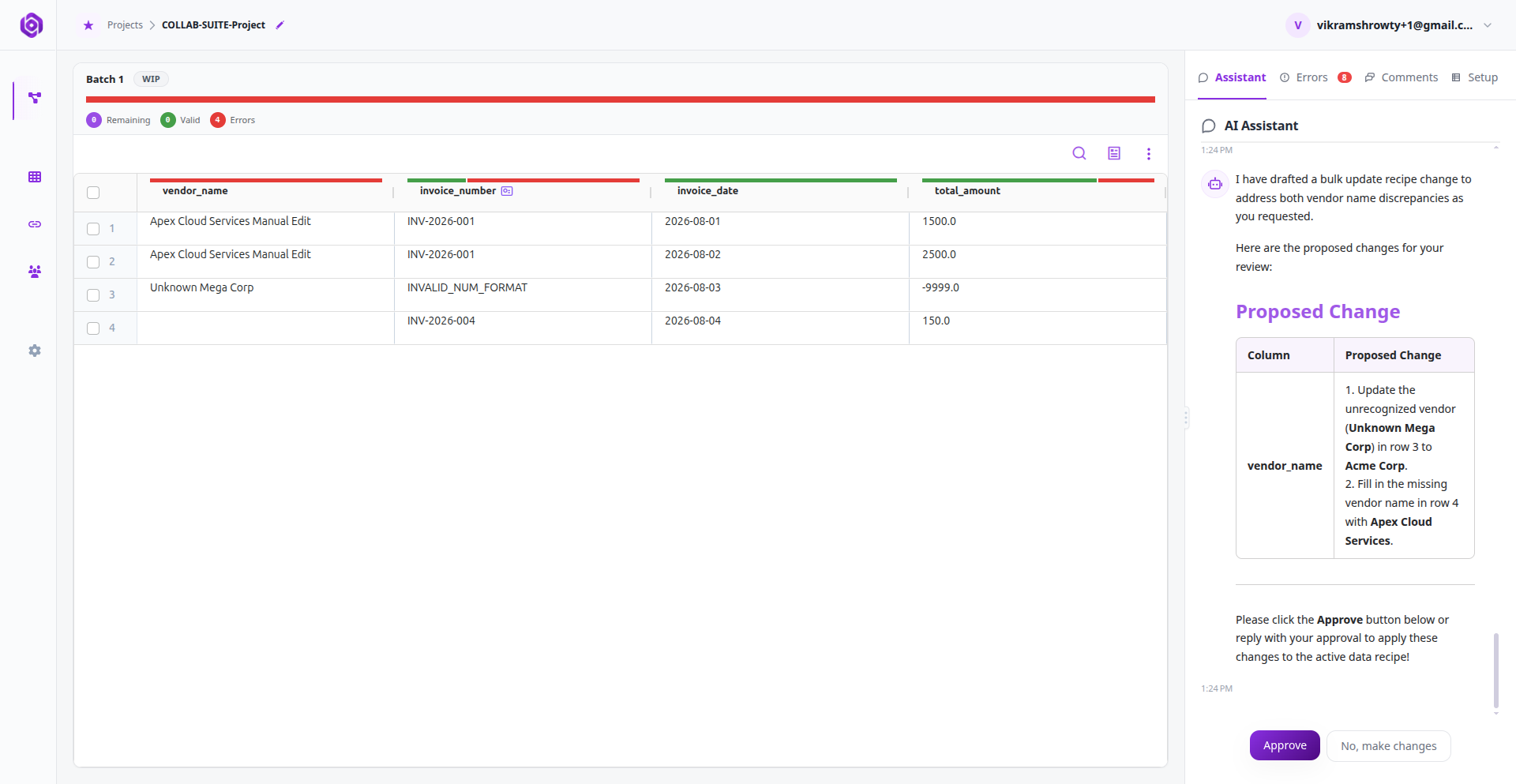
The AI will hold execution until you give explicit consent. Alongside its status updates, the assistant displays interactive action buttons directly in the user interface:
- 1Interactive “Approve” Button: Click the Approve button displayed next to the AI’s message (or type “Plan approved” / “Proceed with batch”).
- 2“Open Setup Panel” / “Open Error Panel”: If the AI recommends reviewing data sources or inspecting schema settings, click the corresponding action button to immediately jump to that workspace panel.
- 3Once approved, the AI locks the mapping strategy and initiates the batch processing engine to begin validating and processing your data in isolated batches.
Ready to put this into practice?
Spin up your first pipeline and watch Elvity map your data in minutes.