Browse documentation
Building Automated Data Migration Workflows
Coordinate the automated path of your B2B data migration, from source files all the way to a clean destination.
A Project coordinates the automated path of your B2B data migration. Here is how to configure a migration workflow from source to destination.
Create a Project
- 1Go to the Projects dashboard (the main home page of Elvity).
- 2Click the Create New Project button in the top-right corner.
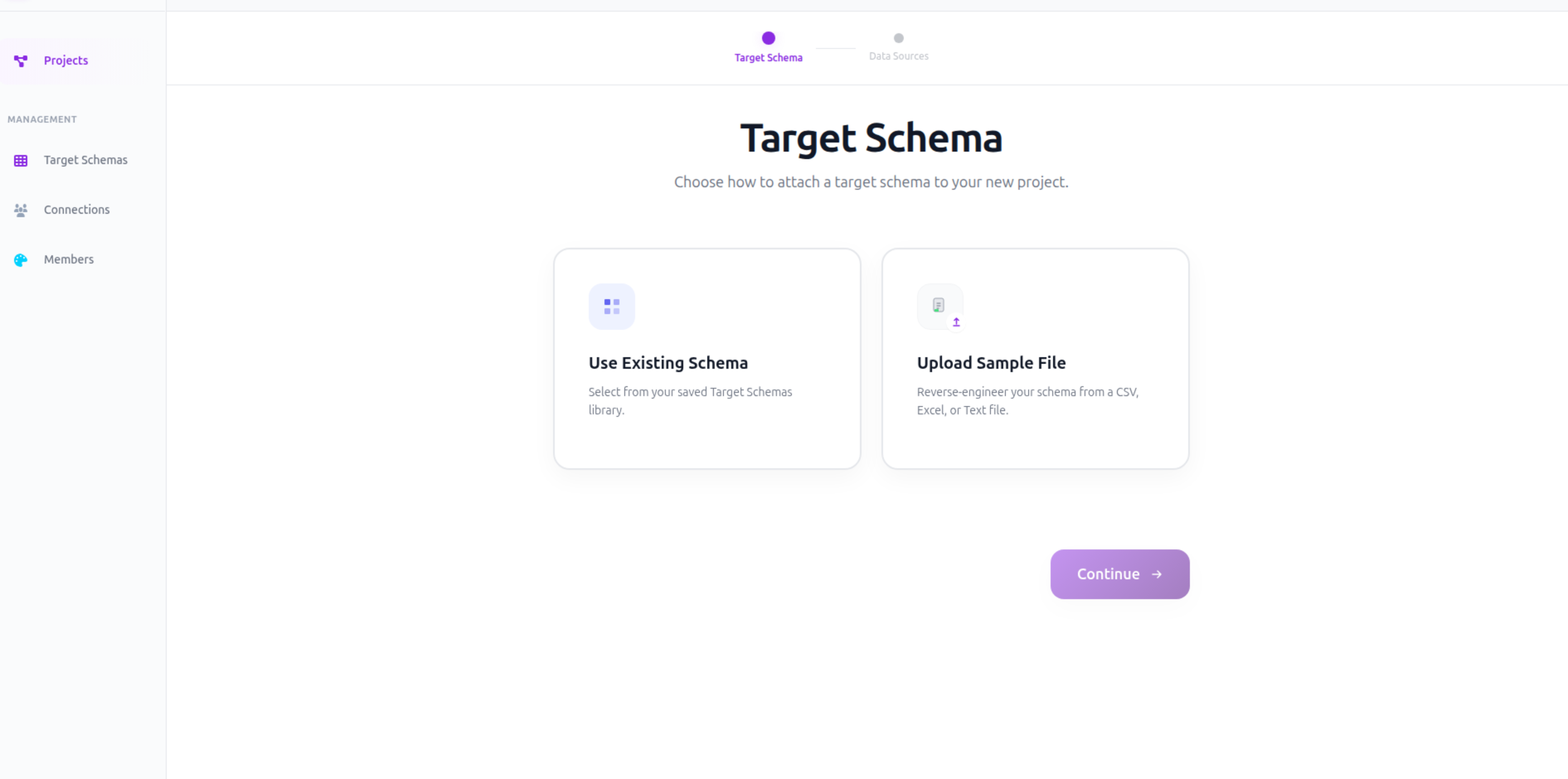
- 3Choose your target schema path.
- Use Existing Schema: Select a pre-configured schema from your Target Schemas library.
- Upload Sample File: Create a new custom schema specifically for this project.
Configure Input Sources
Once the project is initialized, click on the Setup panel on the right side of the screen to attach input sources:
- 1Local File Uploads: Click Import Data → Upload, drag and drop your files, and click Attach.
- 2Connecting Cloud Storage: Click Import Data → Connect new source… to authorize a third-party connection (Google Drive, OneDrive, Amazon S3, Dropbox, or SFTP).
- 3Browse Cloud Directories: Click your cloud connection name (e.g., “OneDrive”) to open the browser dialog. Double-click folders to navigate, select your candidate files, and click Select.
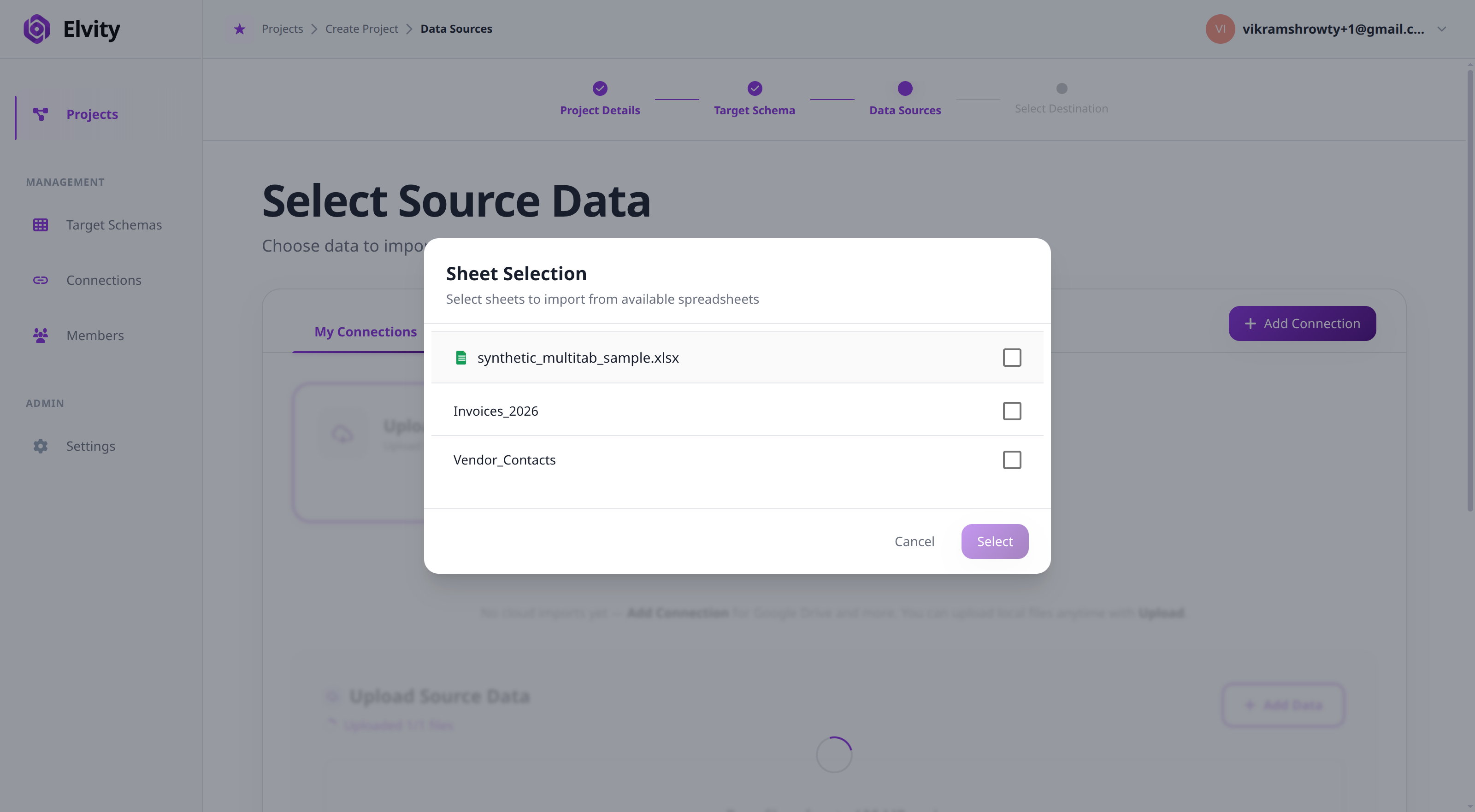
- 4Selecting Excel Sheets: If you select an Excel spreadsheet or Google Sheet, the Sheet Selector dialog opens automatically. Check the boxes next to the sheets you want to import, then click Select.
_1781289874512-DylpaE5K.png)
Set Data Destinations
To configure where clean, validated data is written once approved, navigate to the project’s configuration screen and select the Destination step. Then choose your destination card:
- Secure Webhook: Deliver batched JSON payloads directly to your endpoint.
- Cloud Storage: Sync directly to your private Amazon S3, GCS, or Azure Blob bucket.
- REST Retrieval API: Save validated data on Elvity and query it asynchronously.
- CRM Systems: Map and push validated records directly into Salesforce or HubSpot.
For S3 Cloud Storage, fill in the S3 Configuration form:
- 1Enter your S3 Bucket Name and optional Folder Path (e.g.,
partners/migrations/). - 2Choose your desired output File Format (
JSON,CSV,Parquet,NDJSON) and Region. - 3Provide your Access Key ID and Secret Access Key (or use IAM role integration).
Collaborative Workflow Review & Magic Links
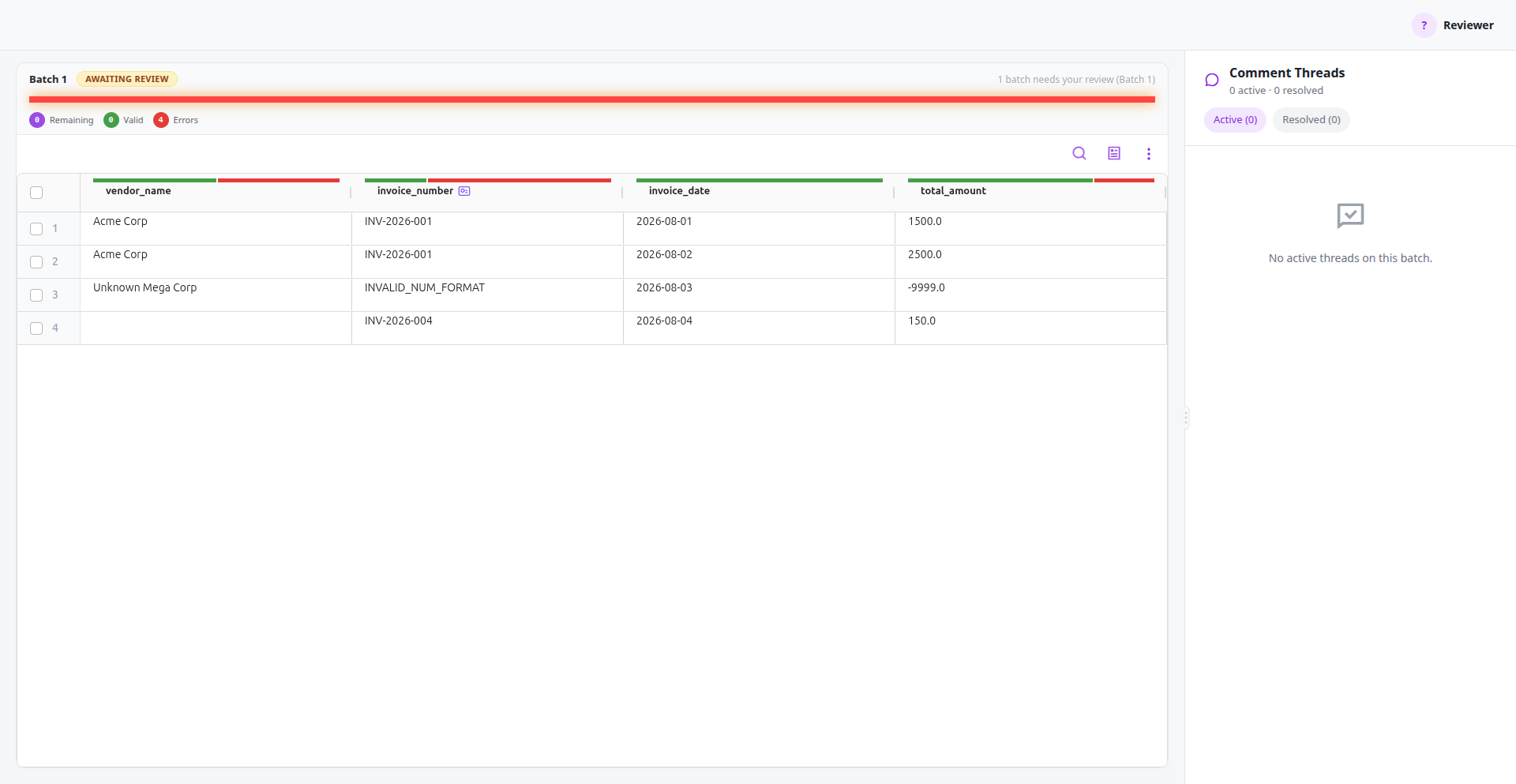
Workflows can be shared with team members and external stakeholders for collaborative data reviews:
- 1Open the active workflow and click the Share button in the header.
- 2In the Share Workflow Dialog, toggle Magic Review Link to active.
- 3Click Copy Link to copy the secure review invitation URL (
/review/join?token=...) to your clipboard. - 4Anyone with the magic review link can join the workspace to review data mappings, inspect validation errors, and leave cell comments.
- 5To revoke access at any time, reopen the dialog and toggle the link to inactive.
Ready to put this into practice?
Spin up your first pipeline and watch Elvity map your data in minutes.