Browse documentation
Tracing Data Integrity (Cell Lineage)
Track any cell in your final grid back to its exact origin — a spreadsheet coordinate or a highlighted PDF sentence.
Data migration must be fully auditable. Elvity’s Data Trace feature ensures you can track any cell in your final grid back to its origin across structured spreadsheets, unstructured PDFs, and relational cross-lookups.
Activating the Lineage Viewer & Visual DAG Graph
- 1Open your active project’s data grid.
- 2Hover your mouse over any cell in the table. An Eye (Branch) Icon will appear in the cell’s right corner.
- 3Click the Eye (Branch) Icon (or click the cell and select “View Trace”).
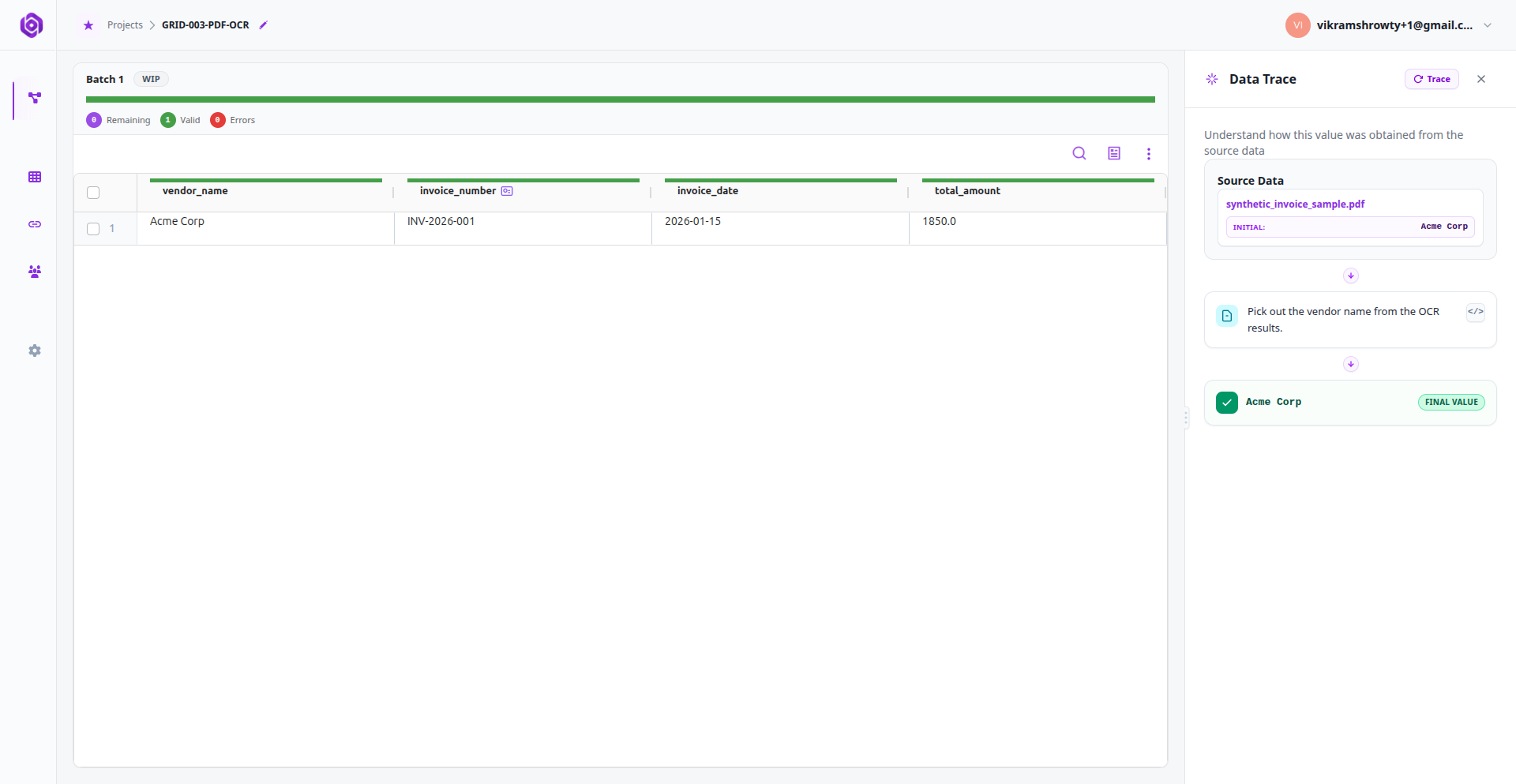
- 4The Data Trace panel slides open from the right, rendering an interactive visual DAG (Directed Acyclic Graph) displaying the step-by-step transformation tree for that specific value.
- 5Visual DAG Nodes: The graph connects raw input nodes (source file coordinate, sheet name, or PDF bounding box), intermediate transformation nodes (formatting, cleanups, formulas), and the final target schema cell output.
Auditing Structured Sources (CSV/Excel) & Coordinate Highlighting
If the cell came from a spreadsheet:
- 1Select the cell and view the Data Trace panel.
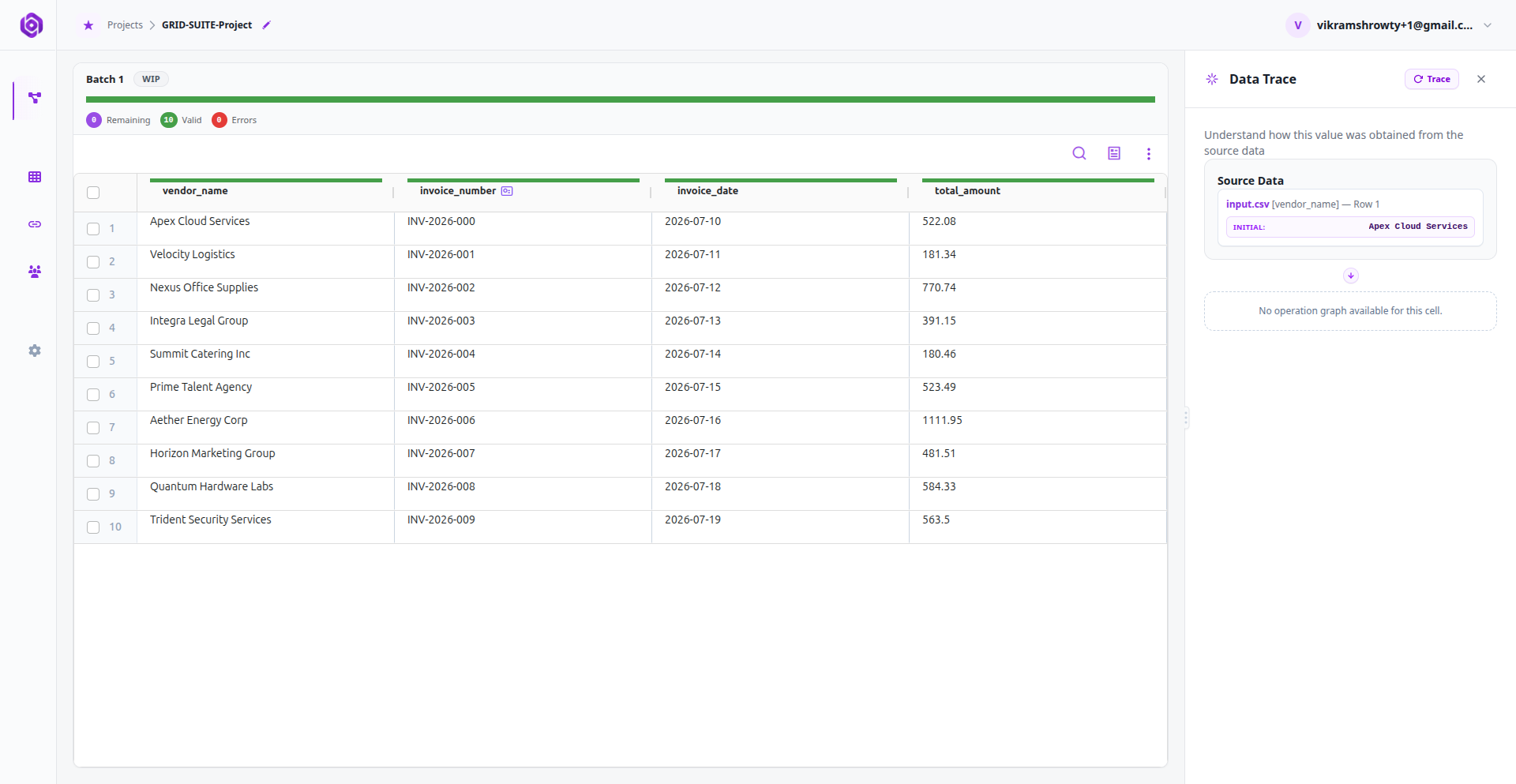
- 2Under Source Data, inspect the exact source filename, worksheet name, and row index where the value was originally located.
- 3Click the filename link to open the Source Preview dialog. The spreadsheet preview opens and scrolls automatically, highlighting the exact cell coordinate in yellow.
Auditing Unstructured Sources (PDFs/Images) & Bounding Boxes
If the cell was extracted from a contract, invoice, or image:
- 1Select the cell and view the Data Trace panel.
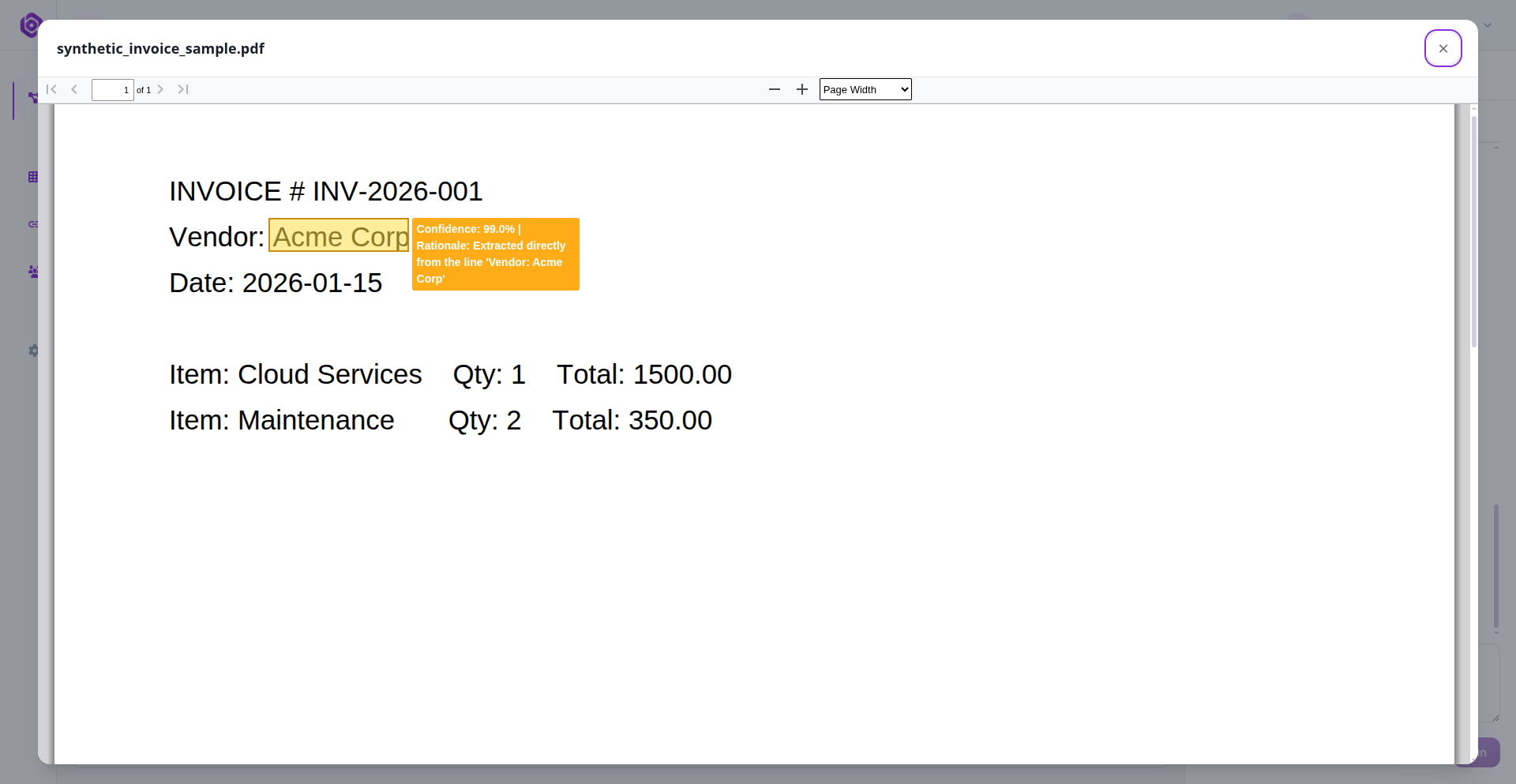
- 2Under Source Data, inspect the source document name, confidence score, and the AI’s extraction rationale.
- 3Click the document link to launch the Document Preview dialog.
- 4The embedded PDF viewer automatically opens, scrolls to the exact page, and draws a luminous bounding box around the exact text, table cell, or signature coordinate from which the AI extracted the value.
Relational Lookups & Cross-Entity Lineage Nodes
When a field value is populated via relational reference lookups (e.g., mapping a customer ID to a canonical company profile), the lineage viewer renders a specialized Relational Lookup Node:
- 1Inspect the lookup node in the visual graph to verify the secondary dataset name and the exact join keys used.
- 2Click View Joined Entity to inspect the matched record in the reference source table.
Auditing Formulas, Calculations & Manual Overrides
If the cell value was produced by a mathematical calculation or edited directly by a human reviewer:
- 1Formula Expressions: Under Formula, click Show to view the underlying expression (e.g.,
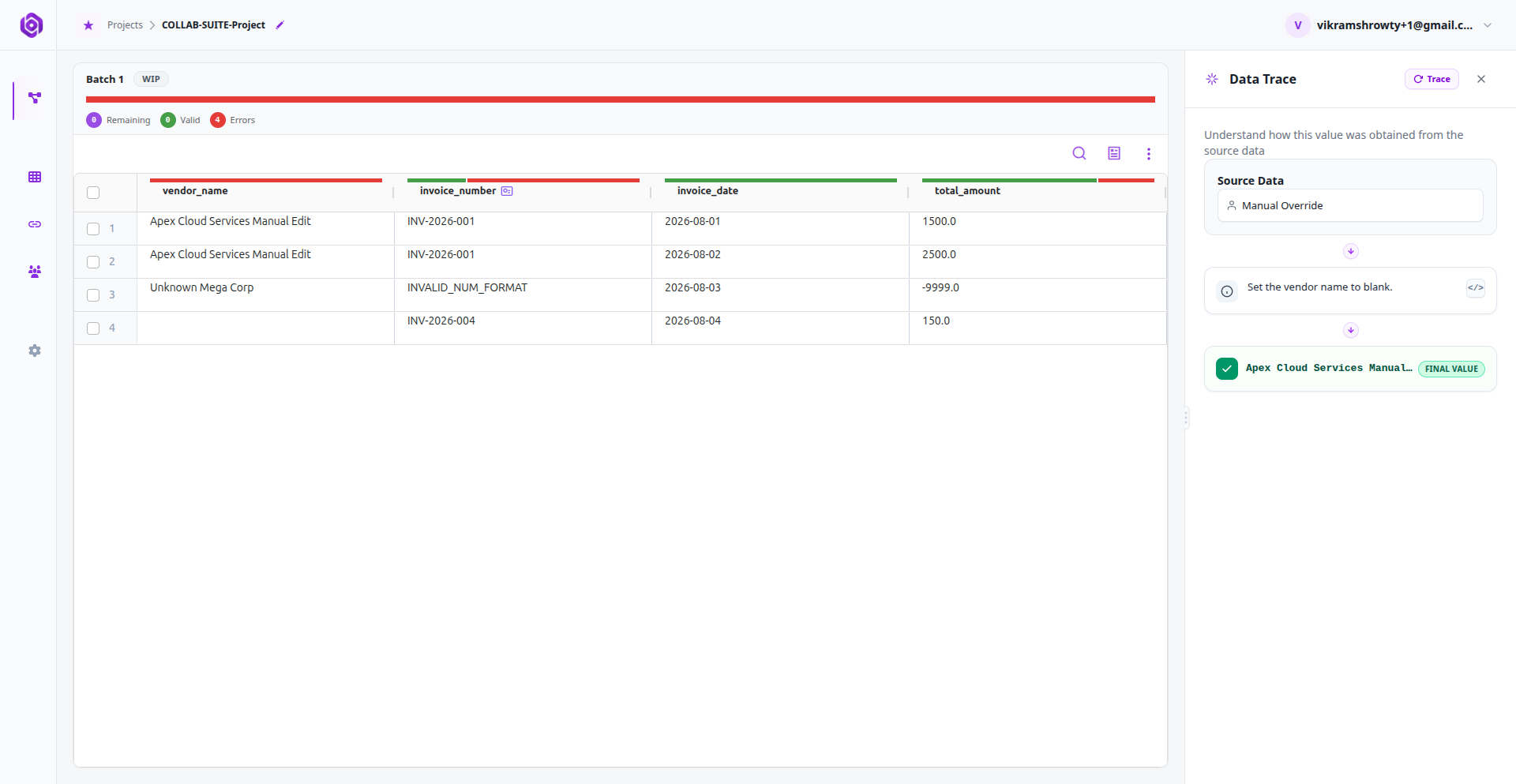
Unit_Price * Quantity). Click Translate formula to let the AI explain the business logic in plain English. - 2Manual Override Tracking: If a reviewer manually modified a cell in the grid or applied a comment suggestion, the lineage tree inserts a dedicated Manual Override Node capturing the previous value, the new value, the author, and timestamp.
Ready to put this into practice?
Spin up your first pipeline and watch Elvity map your data in minutes.