Browse documentation
Migration Workflows
Migrating Data & Monitoring Batch Progress
Run the data migration, review the AI mapping plan, and monitor large datasets as they process in batches.
With your input sources and target schema attached to your workflow project, you are ready to migrate data and monitor its execution.
6.1
Automated Discovery & Kickoff
- 1Automatic Kickoff: Once source data is attached to your active project, the autonomous AI Data Migration Engine automatically initiates discovery and structural mapping analysis.
- 2Discovery Phase: The system transitions into a loading state while the AI inspects column structures, discovers worksheets or document layouts, and structures the migration strategy.
- 3Plan Presentation: After a few minutes of analysis, the AI presents a comprehensive mapping plan directly in your workspace for review and human verification.
6.2
Review the AI Mapping Plan
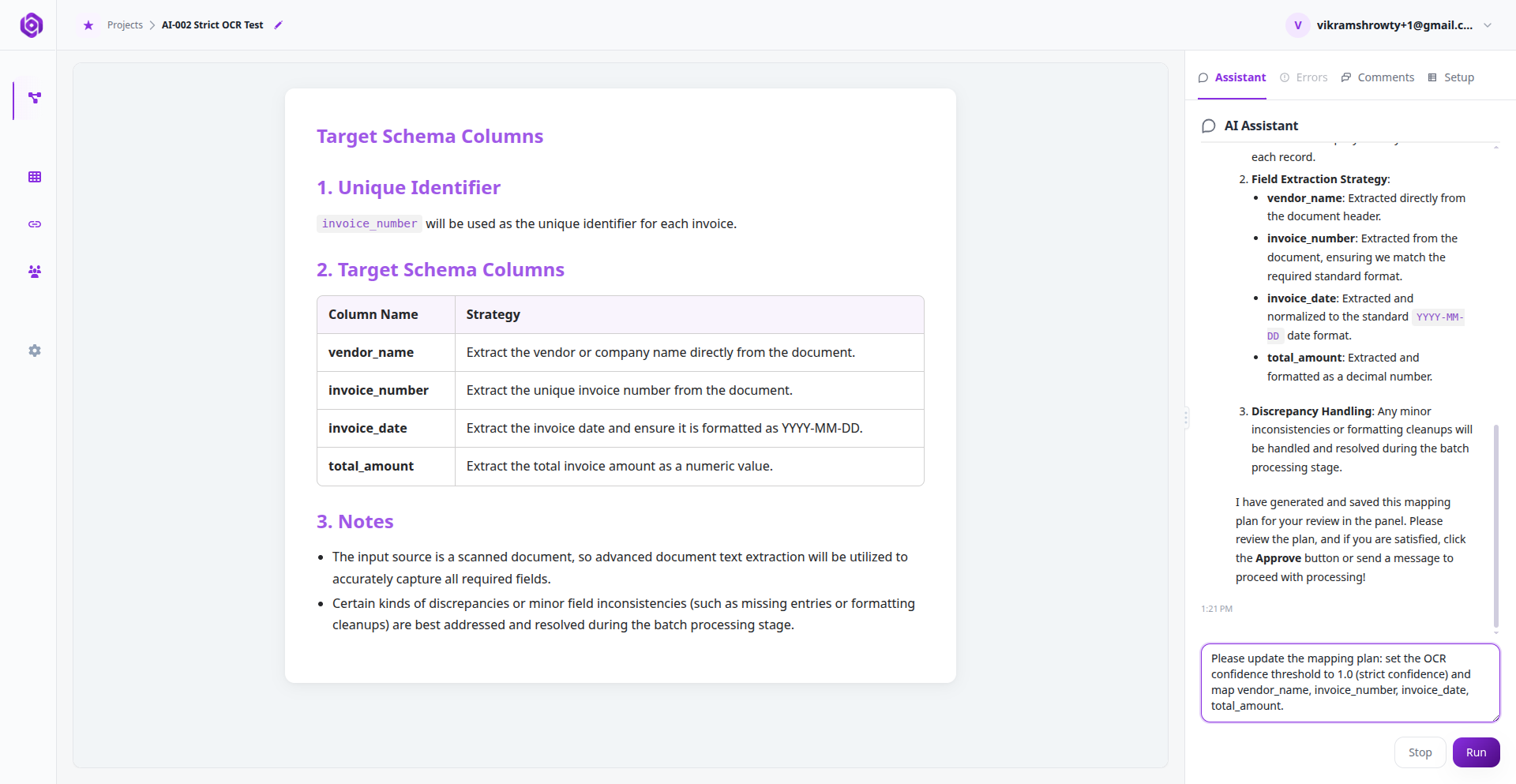
Before starting the mapping process, the AI Assistant analyzes your source files and displays its strategy in the workspace:
- 1Carefully Read the Plan: Inspect the rendered markdown. Verify that the AI has mapped the source columns (e.g.,
WORK_EMAILin your messy Excel sheet) to your exact target fields (e.g.,Email). - 2Review Unique Identifiers: Ensure the identified primary key columns are correct.
- 3Course-Correct: If you see any mismatch, type your correction into the AI Assistant chat panel (e.g., “Map F_NAME to First_Name instead of Full_Name”). The AI will regenerate the plan immediately.
- 4Approve: Once verified, click the interactive Approve button or type “Plan approved” in the chat to start processing.
6.3
Monitor Batch Progress & Proactive Status Updates
Processing large datasets (such as a CSV with 50,000 rows or 200 PDF files) happens in modular, sequential batches:
- 1Batch-by-Batch Execution: Data processing, entity extraction, and schema rule validation occur on a batch-by-batch basis to isolate errors and ensure optimal performance.
- 2Operator-Driven Progression: The system processes the current batch and reports its status. It moves on to the next batch after you tell it to proceed (or upon approving the batch results), keeping you in total control.
- 3Proactive SaaS Status Updates: The AI Assistant continuously posts high-level progress summaries as documents are extracted, structural anomalies are detected, or batches complete processing.
- 4Interactive Context Buttons: Messages from the AI include contextual action buttons (such as Approve, Next Batch, Open Errors, Open Setup) allowing you to navigate directly to the relevant workspace view.
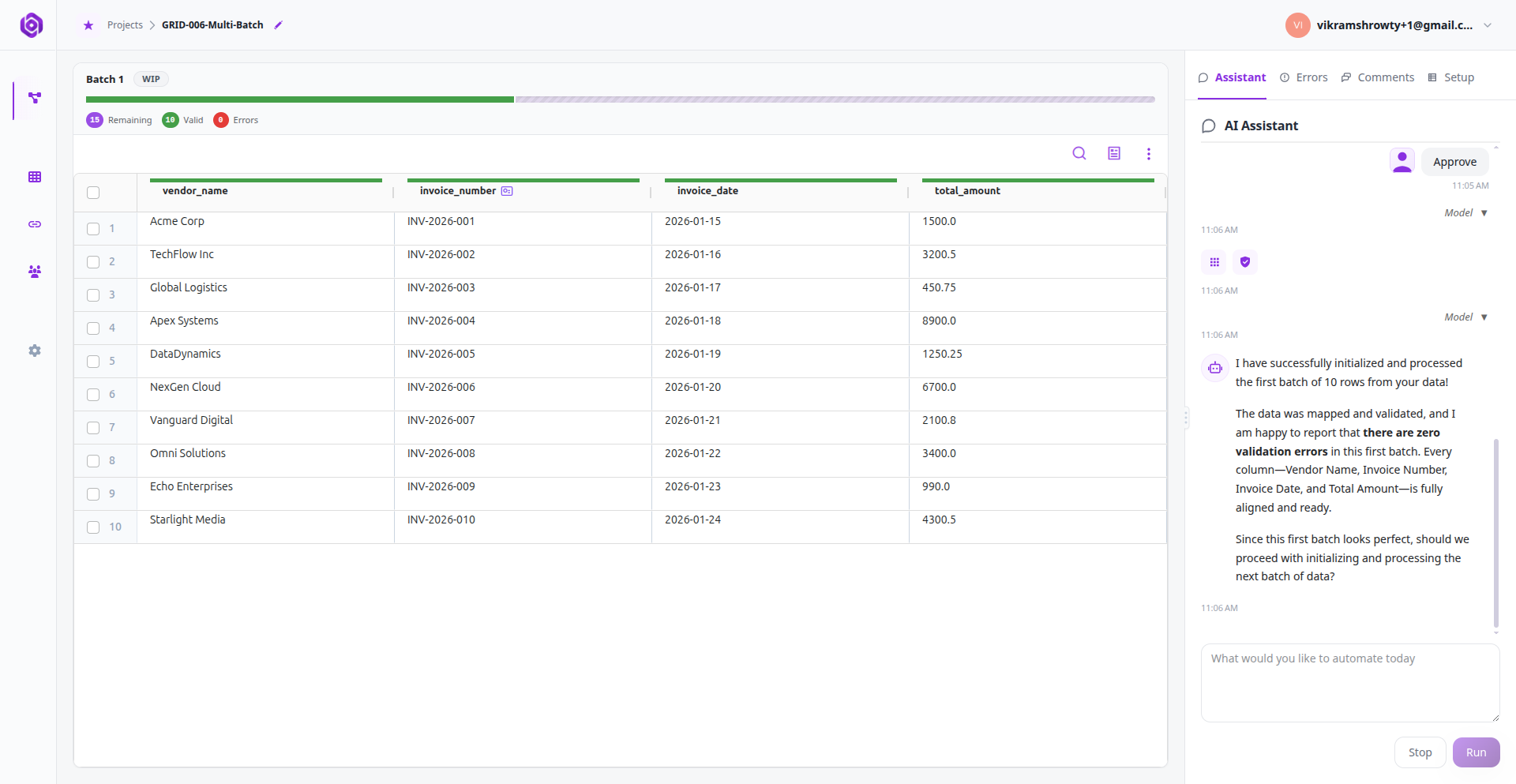
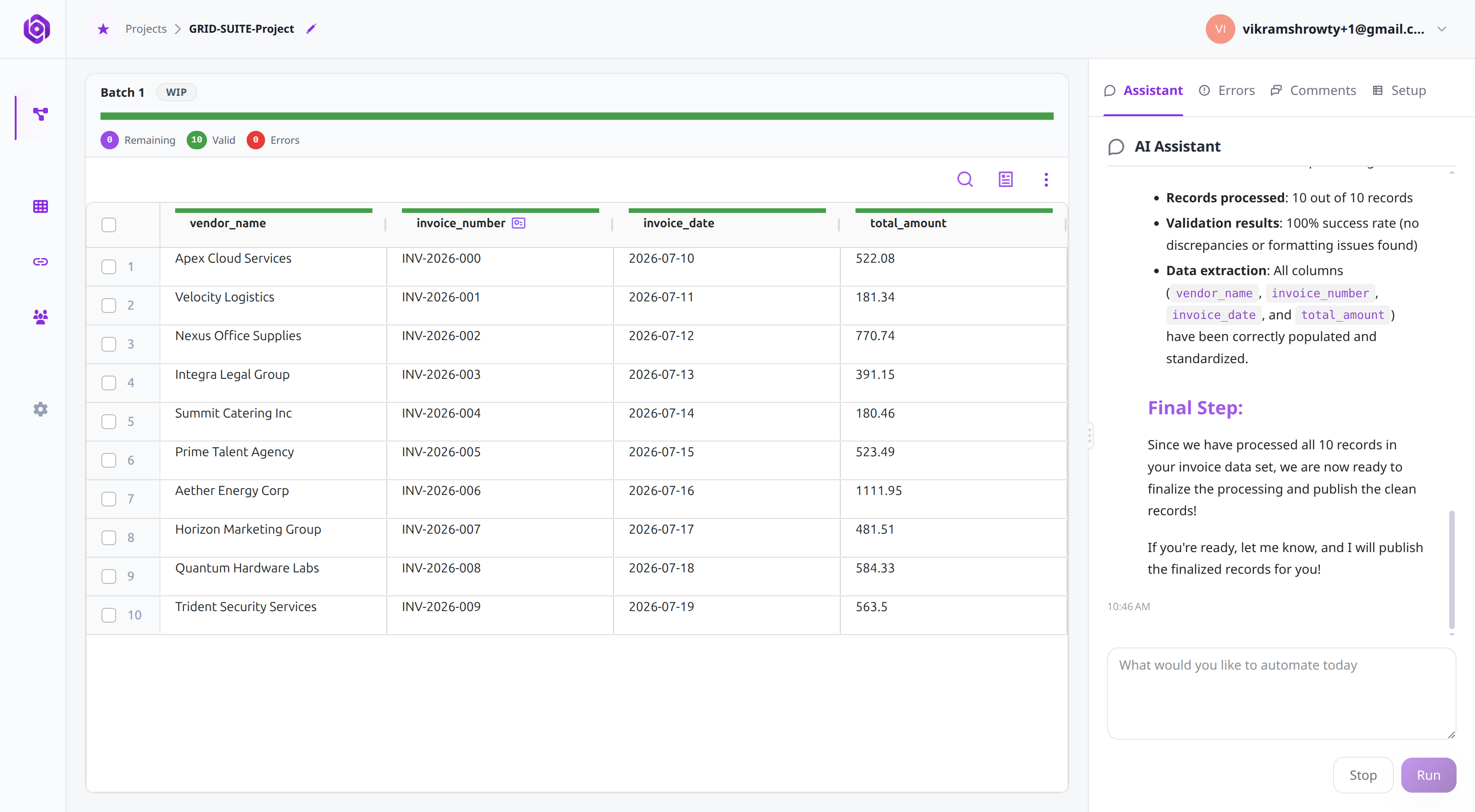
- 5The Segmented Progress Bar: A segmented progress bar appears above the workspace showing individual batch blocks with real-time status indicators.
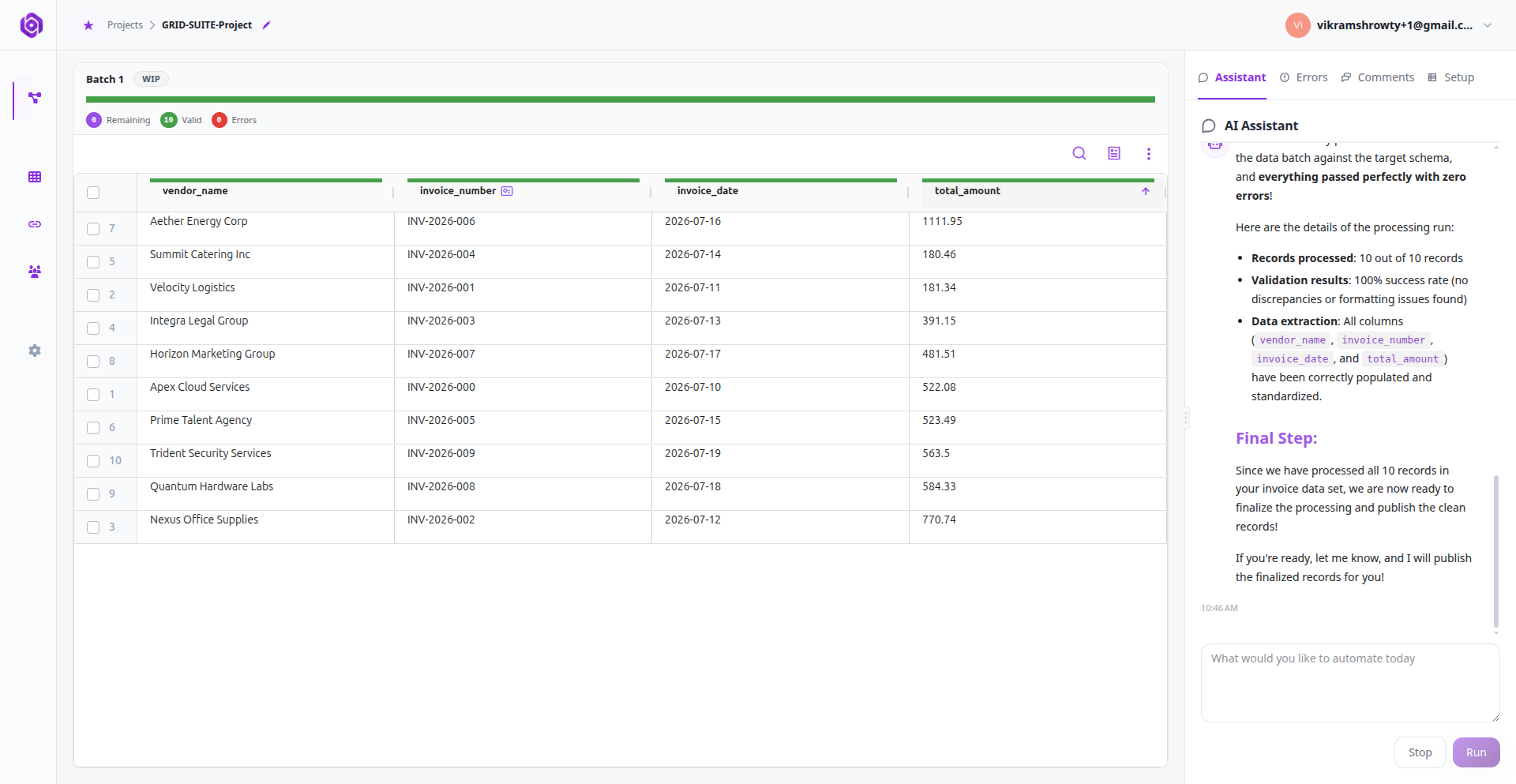
- 6Switch Between Batches Anytime: You can freely switch between any batches at any time. Simply click any batch block on the progress bar to instantly load that batch into the Smart Data Grid, allowing you to inspect rows, resolve errors in earlier batches, or verify data quality while subsequent batches run.
Processing (Grey): The AI is currently performing extraction, cleaning, or validation on this batch.
Valid (Green): All rows within this batch successfully passed all validation rules.
Errors (Red): Some rows in this batch failed your schema's guardrails.
6.4
High-Volume Dataset Optimization (>500K Rows)
When processing enterprise-scale datasets containing over 500,000 rows:
- High-Throughput Migration Mode: The platform automatically activates an optimized high-throughput execution mode to maximize data movement speed and reduce memory overhead.
- Audit Lineage Streamlining: Detailed per-coordinate lineage indexing is streamlined to maintain sub-second grid rendering while full rule-validation checking and batch-level error isolation remain completely active.
Ready to put this into practice?
Spin up your first pipeline and watch Elvity map your data in minutes.