Browse documentation
Resolving Migration Errors (The Error Console)
Isolate validation failures and resolve them in bulk — with manual edits or AI-driven fixes — without touching local files.
When incoming data violates your Target Schema’s rules, Elvity isolates the issues so you can resolve them in bulk — without modifying source files on your computer.
Navigating the Error Console
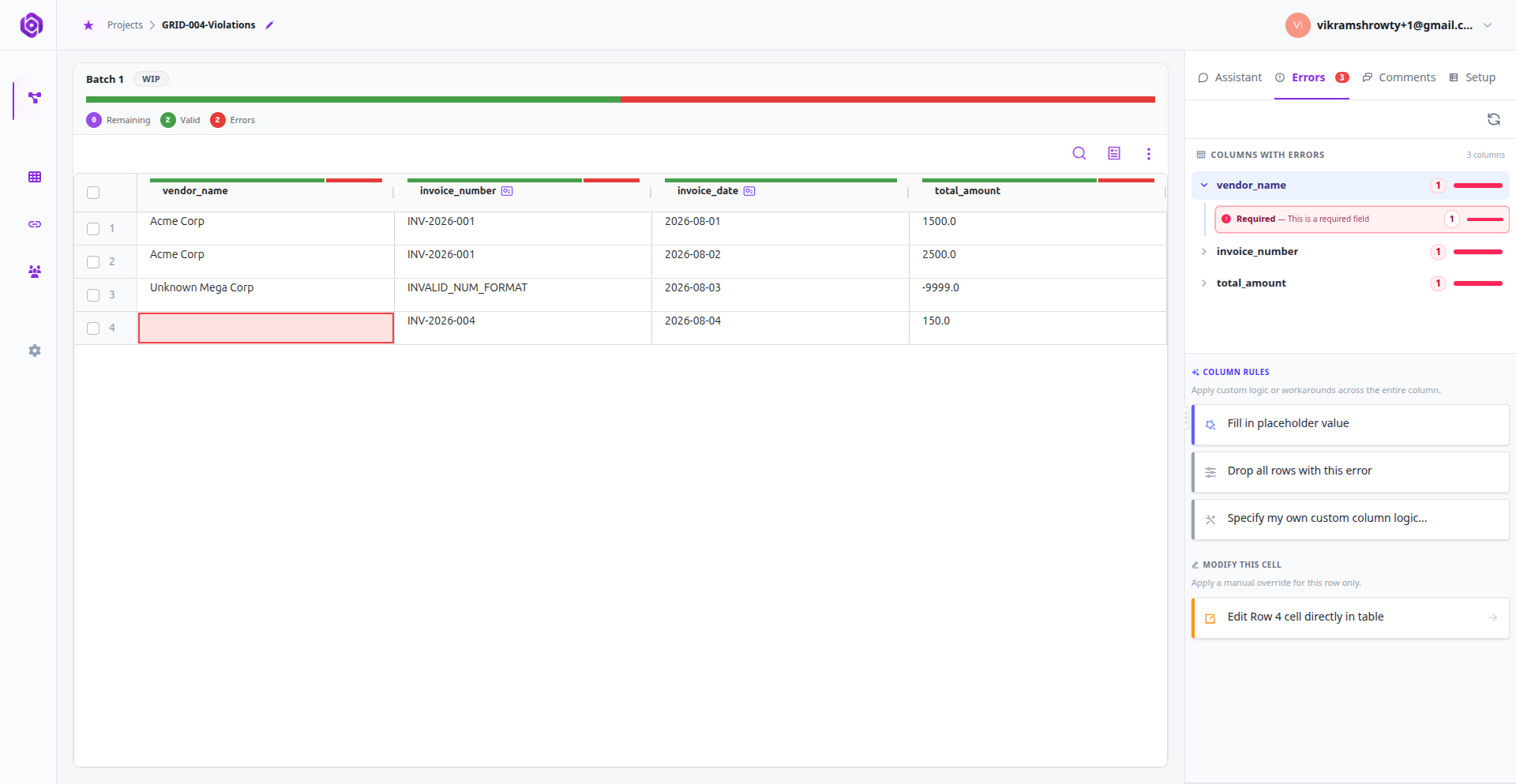
When validation fails, click the Errors tab in your right side panel to open the Error Console:
- 1Rule Progress Bar: Check the progress bar at the top for a column-by-column health indicator. Red columns require attention.
- 2Isolate Columns: Columns containing errors are flagged with an error count badge (e.g., 12 errors). Click a column to filter the grid.
- 3Filter by Violation Type: Click a specific error type under the active column (e.g., Range or Allowed Values) to see suggestions for only that rule.
- 4Auto-Scroll to Error Instances: Hover over an error type and click the Prev/Next arrow controls. The main data grid automatically scrolls and highlights the exact failing cell in red.
Making Spreadsheet-Style Manual Edits
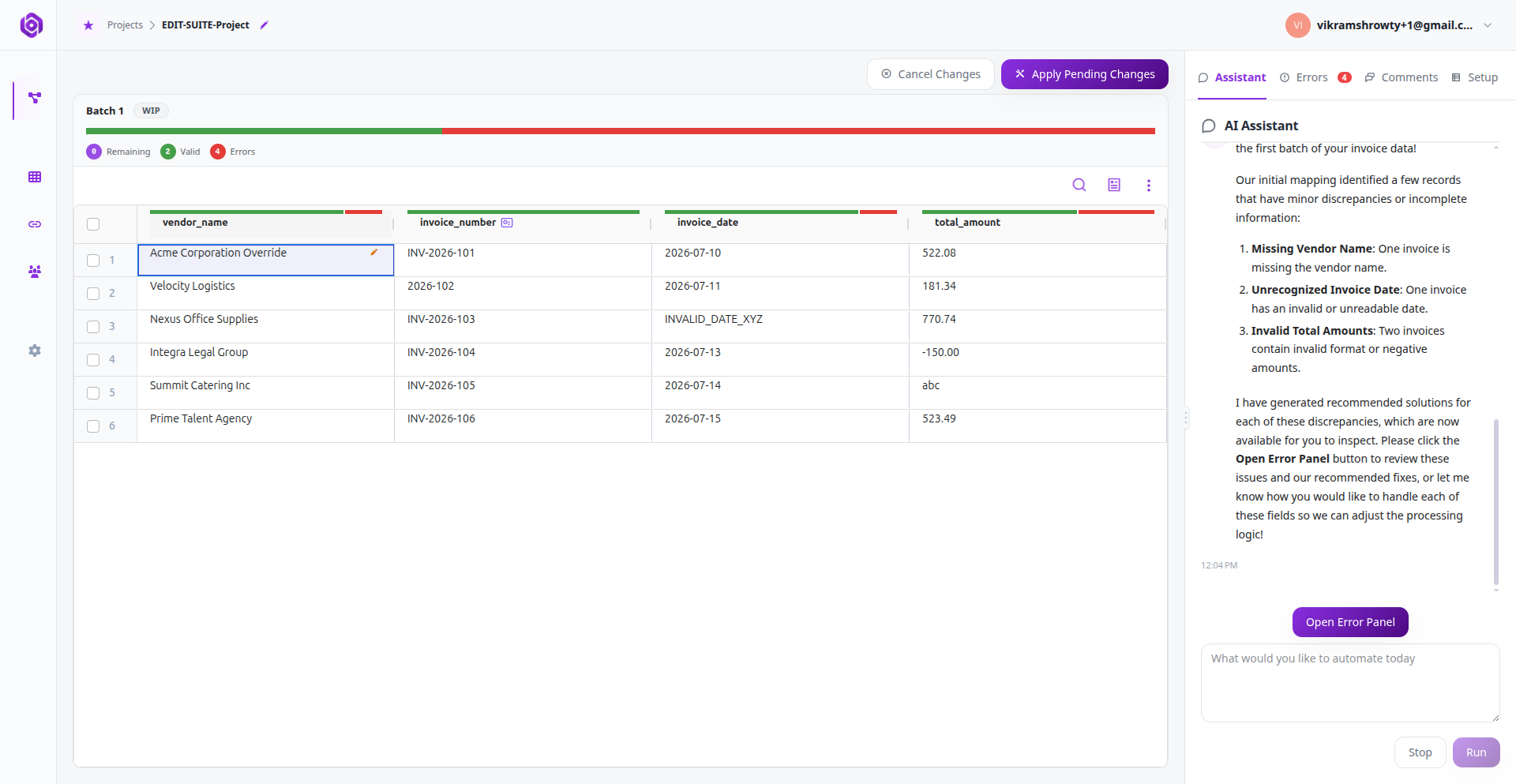
For small, one-off corrections, you can edit the grid manually:
Locate the failing cell
Find the red-bordered failing cell in the grid.
Open the cell for editing
Double-click directly inside the cell.
Enter the correct value
Type in the correct value and hit Enter.
Confirm the queued change
The cell background will change to orange, indicating a Queued Change.
Choosing AI Suggestions
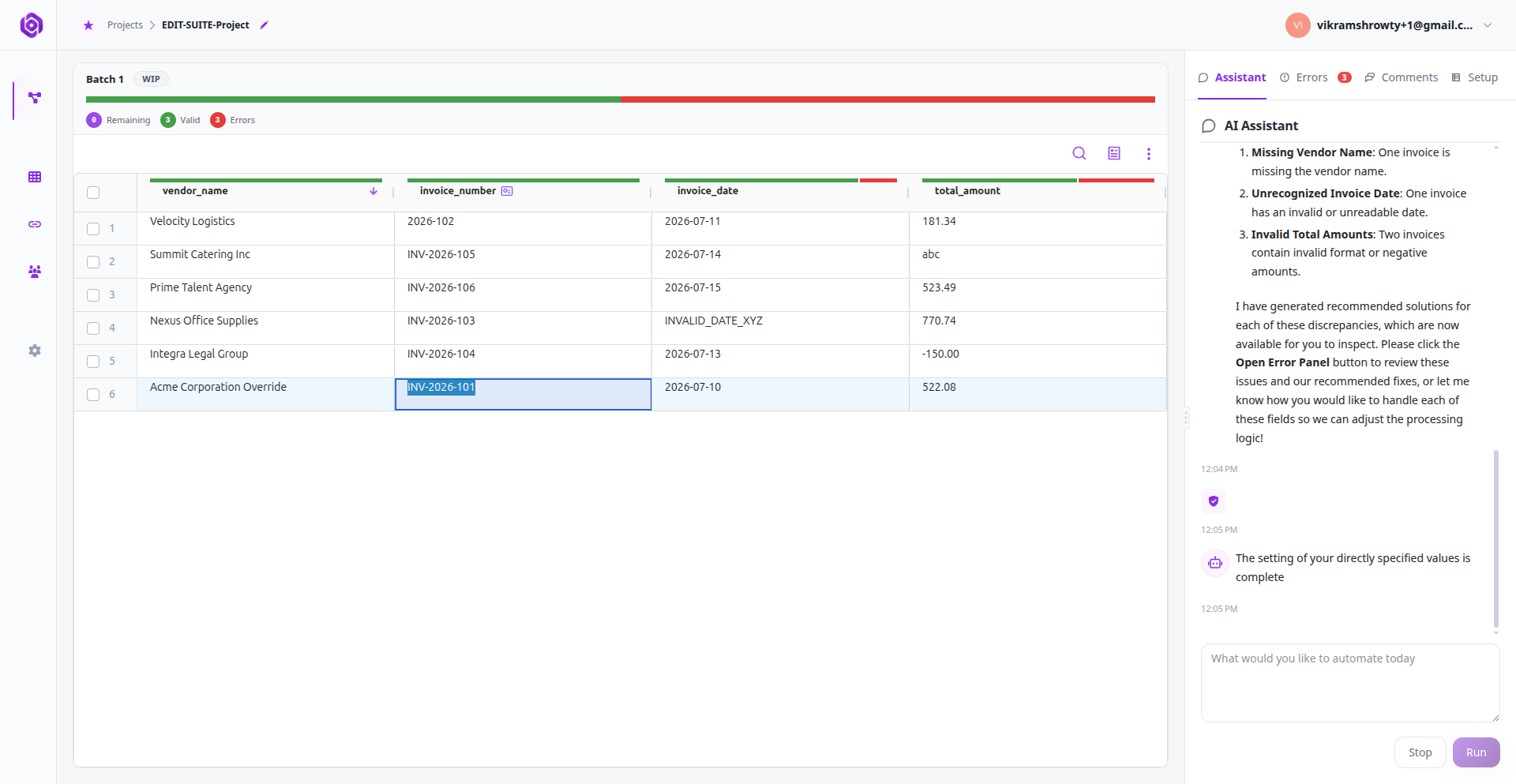
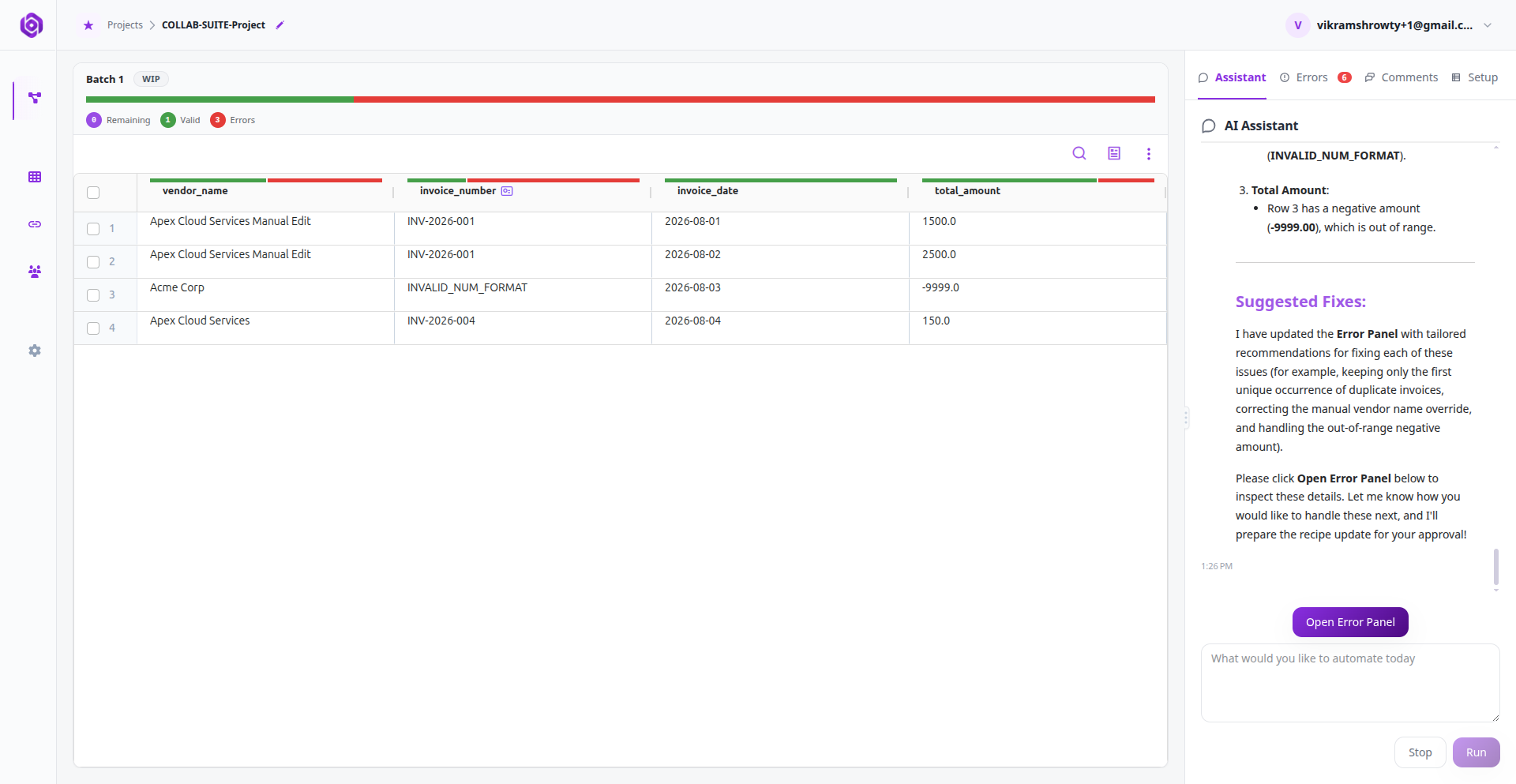
For widespread errors (e.g., hundreds of invalid phone numbers or date formatting mismatches), the AI Assistant provides intelligent suggestions and conversational fix capabilities:
- 1AI Error Suggestions: Select any column and error type in the Error Console. The AI analyzes the failures and generates suggested fixes for that specific error category.
- 2Apply Across the Entire Column: Choose one of the suggested fixes (e.g., standardizing date formatting, dropping invalid rows, or filling default values). The chosen fix applies across all affected rows in that entire column.
- 3Conversational Fixes via the Assistant Text Area: Alternatively, you can describe the fix you want in plain English directly inside the AI Assistant text area (e.g., “Strip leading currency symbols and format as a plain decimal” or “Replace unrecognized vendor names with Acme Corp”).
- 4Queued Changes: All selected suggestions and conversational instructions get queued into pending changes (highlighting affected cells in orange). They are staged safely and applied whenever the migration run or re-validation occurs.
Applying Changes & Re-running Validation
Once your manual edits and AI bulk suggestions are queued:
- 1Click the purple Apply Pending Changes button at the top of your workspace.
- 2Elvity sends your overrides to the validation engine, re-runs the validation rules, and refreshes the data grid.
- 3Ensure your column progress indicators turn green, then click Approve & Next to export your validated data.
Cell Comment Discussion Threads & “Apply to Data”
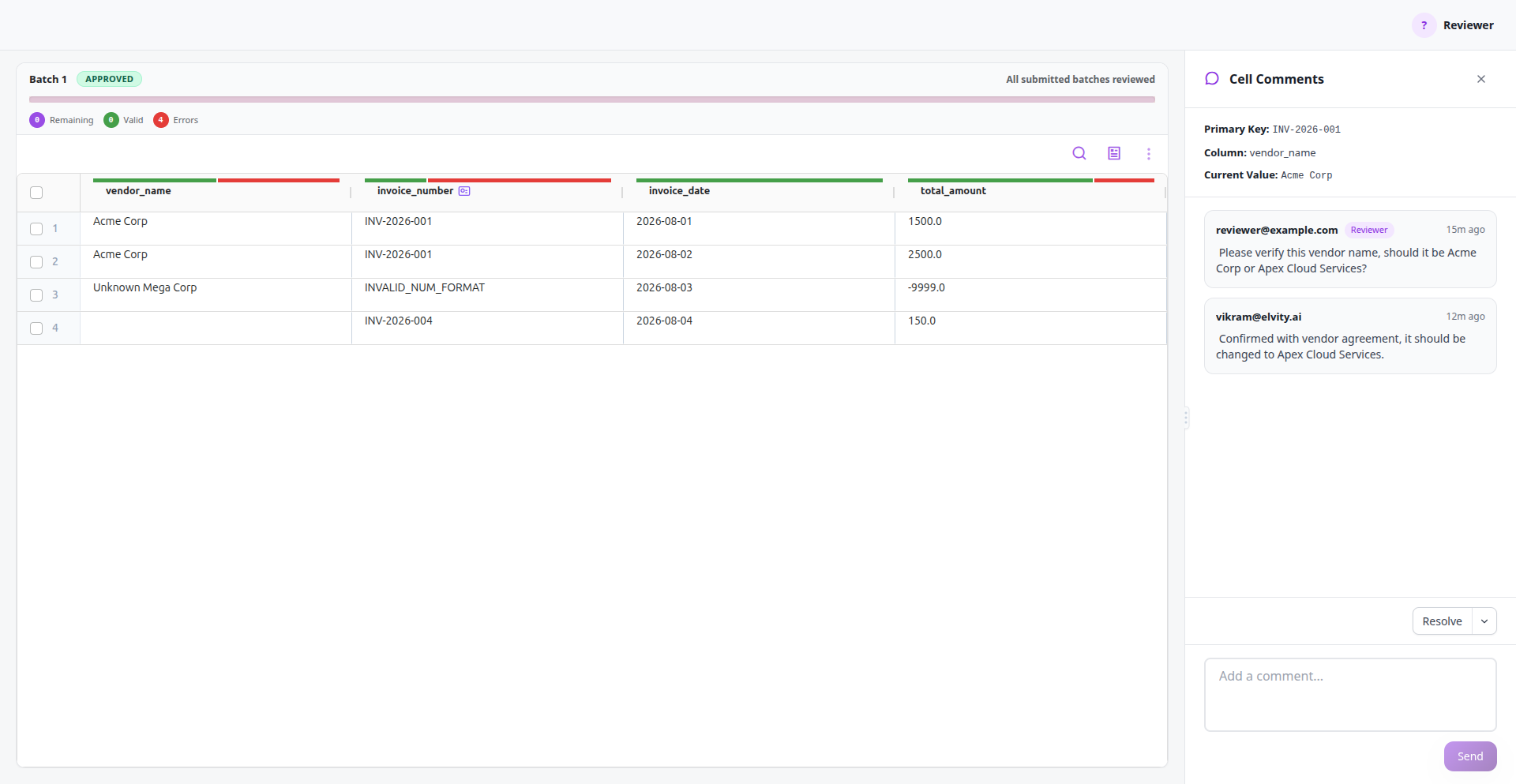
To collaborate on data quality issues directly inside the Smart Data Grid:
- 1Right-click on any cell in the data grid to open the context menu.
- 2Select Comments to open the cell comment thread panel and post or reply to comments. You can use @ mentions to notify specific teammates.
- 3Single Thread per Cell: Cells support a single focused discussion thread, preventing fragmented conversations.
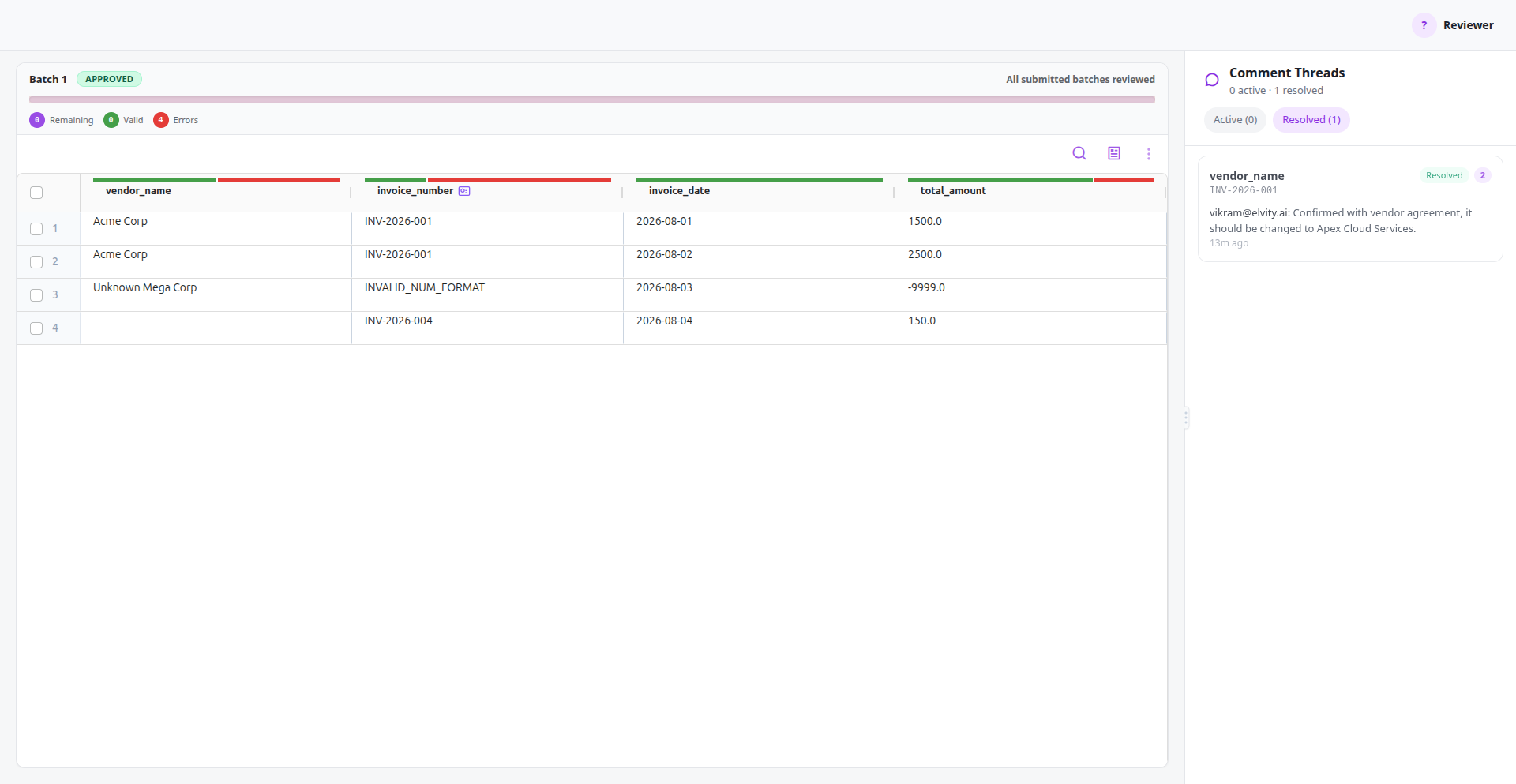
- 4Applying Thread Decisions to Data: When a discussion reaches a conclusion (such as team members agreeing on a corrected value or formatting rule), select Apply to Data & Resolve. The system automatically synthesizes the conversation history and instructs the AI Assistant to apply the agreed decisions directly to the dataset while marking the thread resolved.
- 5Global Discussion Tracking: Open the Threads tab in the side panel to view all discussions across the dataset, toggle between Active and Resolved filters, and click any thread card to automatically navigate to and highlight the target cell in the data grid.
Ready to put this into practice?
Spin up your first pipeline and watch Elvity map your data in minutes.